Build a SaaS with Google OAuth and Stripe in 20 Minutes
Stop spending weeks on auth and payments. In this guide, you'll build a complete SaaS starter with Google login, Stripe subscriptions, and a user dashboard. Then deploy it live - with all your secrets actually secure.
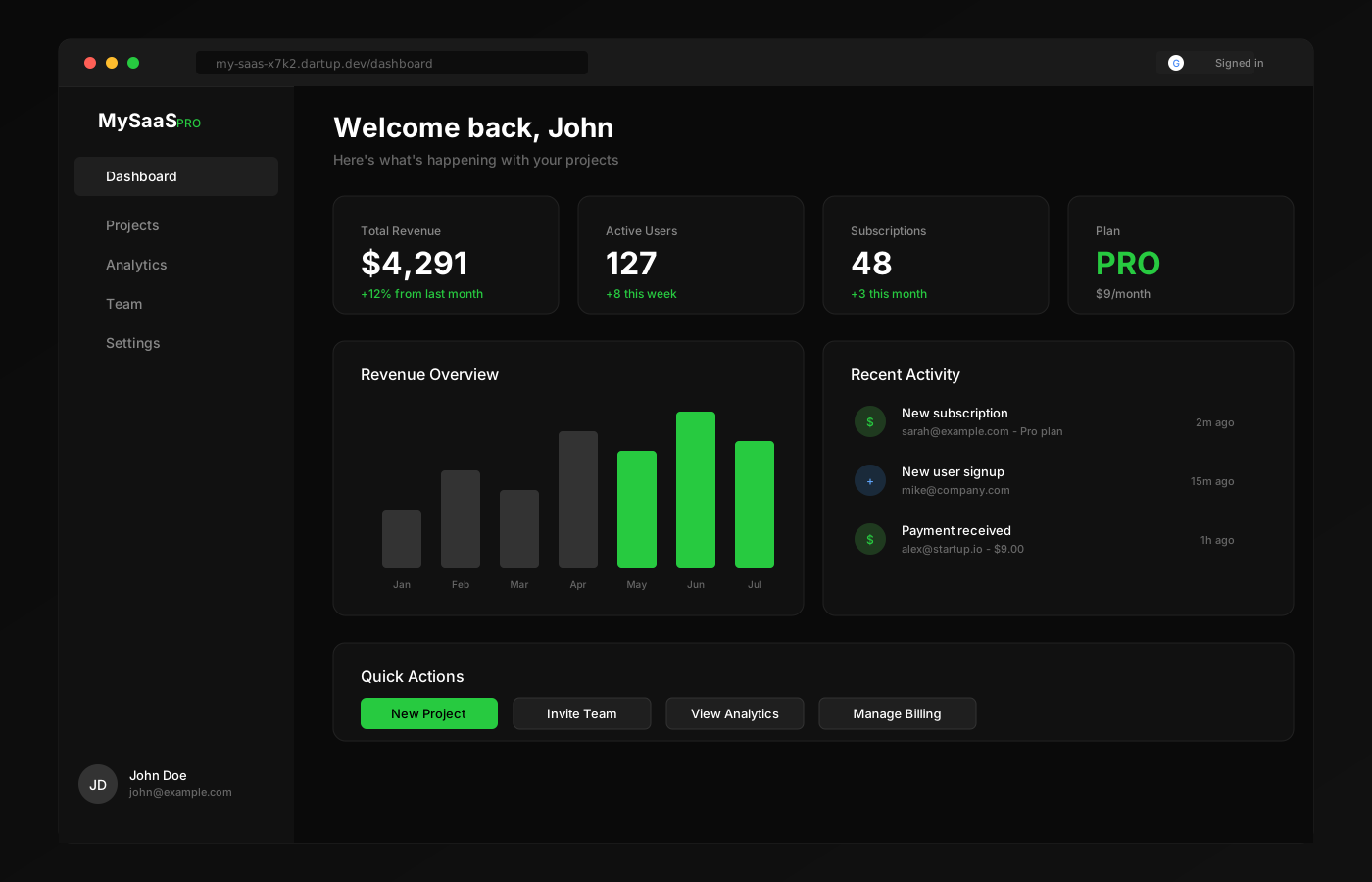
What We're Building
By the end of this tutorial, you'll have a production-ready SaaS starter that includes:
Google OAuth
One-click sign in with Google. No passwords to manage.
Stripe Subscriptions
Monthly billing with Stripe Checkout. Handles upgrades and cancellations.
User Dashboard
Profile management, subscription status, and billing history.
Secure Deployment
Environment variables for API keys. HTTPS by default.
Before We Start: Get Your API Keys
You'll need credentials from Google and Stripe. This is the most "boring" part, but it only takes a few minutes. Let's knock it out.
Google OAuth Credentials
- Go to the Google Cloud Console
- Create a new project (or select an existing one)
- Click "Create Credentials" → "OAuth client ID"
- Choose "Web application"
- Add authorized redirect URIs (we'll update this after deployment):
http://localhost:3000/api/auth/callback/google(for local dev)
- Copy your Client ID and Client Secret
Stripe API Keys
- Go to your Stripe Dashboard
- Copy your Publishable key (starts with
pk_) - Copy your Secret key (starts with
sk_) - Create a product with a recurring price in the Products section
- Copy the Price ID (starts with
price_)
Use Test Mode First
Start with Stripe's test mode keys (they have "test" in them). You can process fake payments with card number 4242 4242 4242 4242. Switch to live keys when you're ready to accept real money.
Step 1: Create Your Project
Fire up Claude Code in a new directory:
$ mkdir my-saas
$ cd my-saas
$ claude
Step 2: Build the SaaS
Here's the prompt. It's detailed because we want a production-quality app:
Build me a SaaS starter app with Next.js that includes:

## Authentication
- Google OAuth using NextAuth.js
- Protected routes that redirect to login
- User session with profile info (name, email, avatar)

## Stripe Subscriptions
- Monthly subscription plan ($9/month)
- Stripe Checkout for payments
- Webhook handler for subscription events
- Customer portal link for managing billing

## Database
- SQLite with Prisma
- User model with subscription status
- Store Stripe customer ID

## Pages
1. Landing page with pricing and "Get Started" CTA
2. Login page with Google sign-in button
3. Dashboard (protected) showing:
   - User profile
   - Subscription status (free/pro)
   - "Upgrade to Pro" button (or "Manage Billing" if subscribed)
4. Success page after payment
5. Settings page to manage account

## Environment Variables (read from .env)
- GOOGLE_CLIENT_ID
- GOOGLE_CLIENT_SECRET
- STRIPE_SECRET_KEY
- STRIPE_PUBLISHABLE_KEY
- STRIPE_PRICE_ID
- STRIPE_WEBHOOK_SECRET
- NEXTAUTH_SECRET
- NEXTAUTH_URL

## Design
- Clean, modern black and white theme
- Responsive layout
- Professional SaaS look

Create a .env.example file showing all required variables.
Make sure Stripe webhook verifies signatures properly.
Watch Claude build your entire SaaS stack:
Building your SaaS...
Creating package.json
Creating prisma/schema.prisma
Creating src/lib/auth.ts
Creating src/lib/stripe.ts
Creating src/app/api/auth/[...nextauth]/route.ts
Creating src/app/api/stripe/checkout/route.ts
Creating src/app/api/stripe/webhook/route.ts
Creating src/app/dashboard/page.tsx
Creating .env.example
... and 12 more files
Done!
Step 3: Set Up Your Environment
Copy the example env file and fill in your credentials:
$ cp .env.example .env
# Google OAuth
GOOGLE_CLIENT_ID=your-client-id.apps.googleusercontent.com
GOOGLE_CLIENT_SECRET=GOCSPX-xxxxxxxxxxxxx

# Stripe
STRIPE_SECRET_KEY=sk_test_xxxxxxxxxxxxx
STRIPE_PUBLISHABLE_KEY=pk_test_xxxxxxxxxxxxx
STRIPE_PRICE_ID=price_xxxxxxxxxxxxx
STRIPE_WEBHOOK_SECRET=whsec_xxxxxxxxxxxxx

# NextAuth
NEXTAUTH_SECRET=your-random-secret-string-here
NEXTAUTH_URL=http://localhost:3000
Generate a Strong NEXTAUTH_SECRET
Don't use a weak secret. Generate one with:openssl rand -base64 32
Step 4: Test Locally
Initialize the database and start the dev server:
$ npm install
$ npx prisma db push
$ npm run dev
▲ Next.js 15.1.0
- Local: http://localhost:3000
Open http://localhost:3000 and test the flow:
- Click "Get Started" on the landing page
- Sign in with your Google account
- You should land on the dashboard as a "Free" user
- Click "Upgrade to Pro" to test Stripe Checkout
- Use card
4242 4242 4242 4242with any future date - After payment, your dashboard should show "Pro" status
Step 5: Set Up Stripe Webhooks
For local testing, use the Stripe CLI to forward webhooks:
$ stripe listen --forward-to localhost:3000/api/stripe/webhook
Ready! Your webhook signing secret is whsec_xxxxxxxxxxxxx
Copy that webhook secret to your .env file.
Step 6: Deploy to DartUp
Now let's put this live. DartUp handles your environment variables securely - they're encrypted and never exposed in your code.
First, tell Claude your DartUp API key (get it from your dashboard):
My DartUp API key is: jd_xxxxxxxxxxxx

Remember this for deployments.
Now deploy with your environment variables:
Deploy this to DartUp with these environment variables:

GOOGLE_CLIENT_ID=your-client-id.apps.googleusercontent.com
GOOGLE_CLIENT_SECRET=GOCSPX-xxxxxxxxxxxxx
STRIPE_SECRET_KEY=sk_live_xxxxxxxxxxxxx
STRIPE_PUBLISHABLE_KEY=pk_live_xxxxxxxxxxxxx
STRIPE_PRICE_ID=price_xxxxxxxxxxxxx
STRIPE_WEBHOOK_SECRET=whsec_xxxxxxxxxxxxx
NEXTAUTH_SECRET=your-generated-secret
NEXTAUTH_URL=https://my-saas-xxxx.dartup.devDeploying to DartUp...
Zipping project files
Uploading with 8 environment variables
Building container...
Running prisma db push...
Starting Next.js...
Deployment successful!
Your app is live at: https://my-saas-x7k2.dartup.dev
Step 7: Update Your OAuth Redirect URI
Now that you have your production URL, go back to the Google Cloud Console and add it:
- Go to your OAuth client settings in Google Cloud Console
- Add a new Authorized redirect URI:
https://my-saas-x7k2.dartup.dev/api/auth/callback/googleReplace my-saas-x7k2 with your actual subdomain from DartUp.
Step 8: Set Up Production Stripe Webhooks
Create a webhook endpoint in your Stripe Dashboard:
- Click "Add endpoint"
- Enter your webhook URL:
https://my-saas-x7k2.dartup.dev/api/stripe/webhook- Select events to listen to:
checkout.session.completedcustomer.subscription.updatedcustomer.subscription.deleted
- Copy the Signing secret and update your deployment:
Redeploy with updated STRIPE_WEBHOOK_SECRET=whsec_xxxxx (new production secret)You're Live!
Your SaaS is now running in production with:
- Google OAuth authentication working
- Stripe subscriptions processing real payments (if using live keys)
- All secrets securely stored as environment variables
- HTTPS enabled by default
- Database persisted across deployments
Security Checklist
- ✓Environment variables encrypted - DartUp encrypts your secrets at rest
- ✓HTTPS everywhere - All traffic is encrypted with TLS
- ✓Webhook signature verification - Stripe webhooks are validated
- ✓OAuth state validation - NextAuth handles CSRF protection
Customization Ideas
Now that you have the foundation, build on it:
- "Add a pricing page with multiple tiers"
- "Add team accounts with member invites"
- "Add usage-based billing with Stripe metered billing"
- "Add email verification with Resend"
- "Add a blog with MDX"
Wrapping Up
You just built a complete SaaS with authentication and payments - the kind of foundation that used to take weeks of boilerplate and configuration. Now it's live, secure, and ready for users.
The combination of Claude Code for building and DartUp for deploying means you can focus on what makes your SaaS unique instead of wrestling with auth flows and payment integration.
Now go build something people want to pay for.
Ready to launch your SaaS?
Your first deployment is free. No credit card required.
More tutorials
- Getting Started with DartUp - Complete guide to your first deployment
- Build a Satellite Imagery Analyzer - AI-powered geospatial analysis
- Build a Real Estate CRM - Interactive maps and deal tracking