Build a Satellite Imagery Analyzer with Moondream AI
What if you could point at any spot on Earth and ask AI "what's there?" Today we're building exactly that - a map-based tool that uses Moondream's vision AI to analyze satellite imagery, detect objects, and answer questions about any location. And we'll do it while keeping your API keys secure.
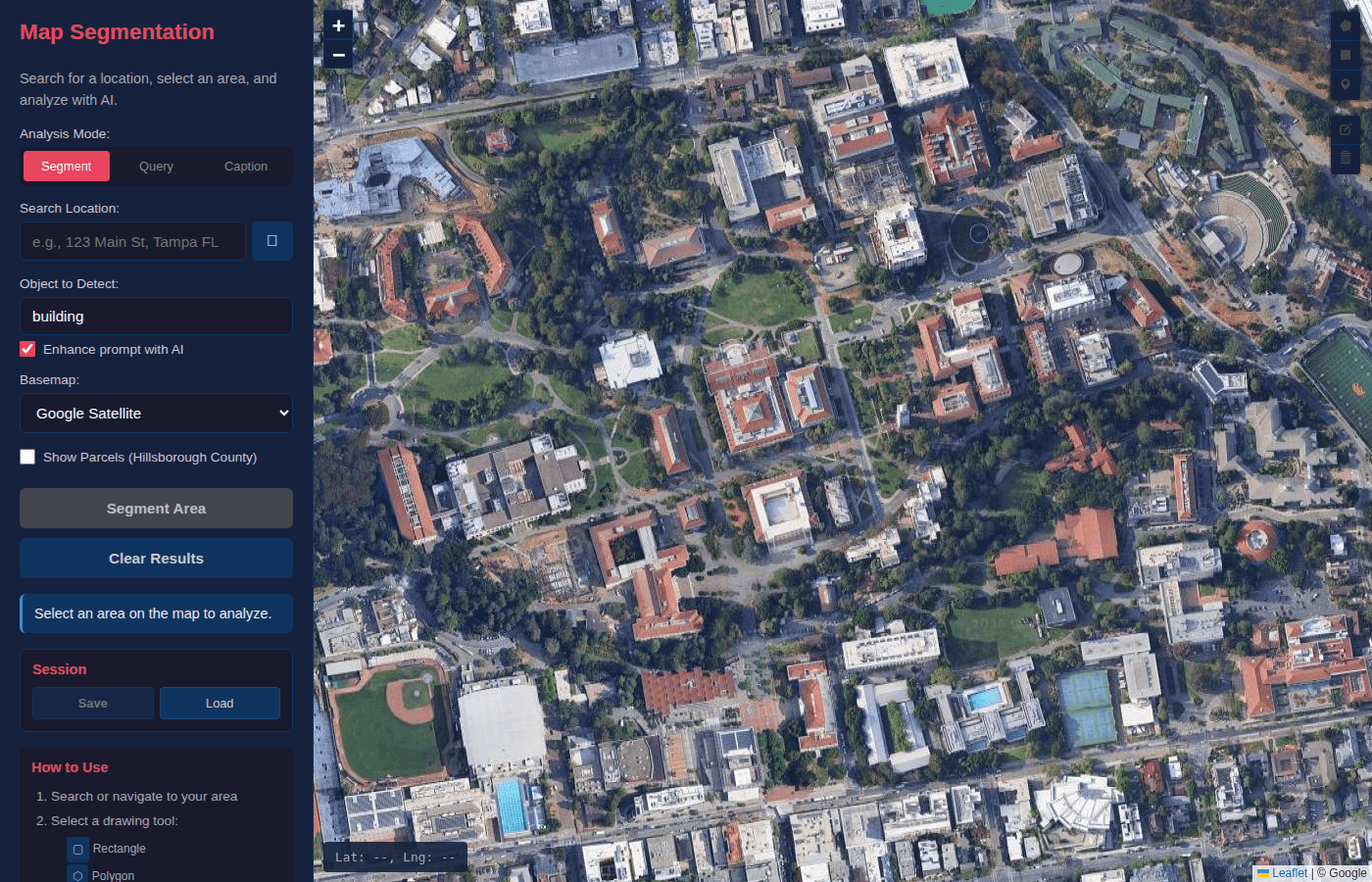
What We're Building
By the end of this tutorial, you'll have your own satellite imagery analyzer that can:
Interactive Map
Navigate anywhere on Earth with multiple satellite imagery sources
Drawing Tools
Select analysis areas with rectangles, polygons, or point markers
Object Detection
Ask Moondream to find cars, buildings, pools, solar panels, or anything else
Natural Language Queries
Ask questions like "Is this land developed?" or "How many trees are here?"
Get Your Moondream API Key
First things first - you'll need access to Moondream's vision AI. Moondream is a fast, lightweight vision language model that's perfect for analyzing images.
- Go to moondream.ai and create an account
- Navigate to your dashboard and find the API section
- Generate a new API key - it will look like
md_xxxxxxxxxxxx - Copy and save it somewhere secure - you'll need it shortly
Keep Your API Key Safe
Your Moondream API key is like a password - don't share it publicly or commit it to Git. Later in this tutorial, we'll show you how DartUp's environment variables keep your keys secure even in deployed apps.
Prerequisites
- Claude Code - Get it from claude.ai/code
- A DartUp account - Sign up free at dartup.dev
- Moondream API key - From the step above
Step 1: Create Your Project
Let's set up a new folder and fire up Claude Code:
$ mkdir satellite-analyzer
$ cd satellite-analyzer
$ claude
Step 2: Build the App
Here's the prompt I used. It's detailed because we want Claude to build something production-ready with proper API key handling:
Build me a satellite imagery analyzer web app with these features:

1. Full-screen interactive map using Leaflet.js
2. Multiple basemap options: Google Satellite, ESRI World Imagery, OpenStreetMap
3. Location search bar to jump to any address
4. Drawing tools: rectangle, polygon, and point selection
5. Analysis panel with three modes:
   - "Detect" - finds specific objects (cars, buildings, pools, etc.)
   - "Query" - answers natural language questions about the area
   - "Caption" - describes what's in the selected area
6. API key input field (stored in localStorage, never sent to any server except Moondream)
7. Results panel showing AI responses with confidence scores
8. Export results as GeoJSON or CSV
9. Clean, modern dark theme UI

For the AI analysis, use the Moondream API:
- Endpoint: https://api.moondream.ai/v1/query
- Include the API key in Authorization header as "Bearer <key>"
- Send the satellite image as base64 in the request body

IMPORTANT: The API key should be stored client-side only and sent directly to
Moondream's API - never route it through any backend to keep it secure.

Make it a static HTML/CSS/JS app for easy deployment.
Claude will get to work. Watch as it builds out the map, drawing tools, and AI integration:
Building your satellite analyzer...
Creating index.html
Creating styles.css
Creating app.js
I've created your satellite imagery analyzer with:
- Leaflet map with 3 satellite imagery sources
- Nominatim geocoding for location search
- Rectangle, polygon, and point drawing tools
- Moondream API integration for AI analysis
- Secure client-side API key storage
- GeoJSON and CSV export
Open index.html to test it out!
Step 3: Test Locally
Before deploying, let's make sure everything works:
$ npx serve .
Local: http://localhost:3000
Open the app and test it out:
- Enter your Moondream API key in the settings panel
- Search for a location (try "Central Park, New York")
- Use the rectangle tool to select an area
- Choose "Caption" mode and click "Analyze"
- Watch as Moondream describes what it sees in the satellite imagery
Step 4: Protecting Your API Key
This is critical. When you deploy apps that use API keys, you need to think about security. Here's what makes our approach safe:
How We Keep Your Key Safe
- ✓Client-side storage only - Your API key is stored in your browser's localStorage, not on any server. DartUp never sees it.
- ✓Direct API calls - Requests go straight from your browser to Moondream. No middleman server that could log your key.
- ✓Each user brings their own key - The app prompts users to enter their own Moondream API key. You're not exposing yours.
- ✓HTTPS everywhere - DartUp deployments use HTTPS by default, encrypting all traffic including API calls.
If you want your app to have its own embedded API key (so users don't need to bring their own), you can use DartUp's environment variables feature. Your key gets injected at build time and stored securely - never exposed in your source code.
Update the app to use an environment variable for the API key:
- Read MOONDREAM_API_KEY from the environment at build time
- Don't show the API key input field if the env var is set
- Fall back to asking the user for a key if no env var is present
When deploying, you can set environment variables in your DartUp dashboard under project settings. The key is encrypted and only available during the build process.
Step 5: Deploy to DartUp
Time to go live! Tell Claude to deploy:
Deploy this to DartUp as "satellite-analyzer"Deploying to DartUp...
Zipping project files (3 files, 52KB)
Uploading to dartup.dev/api/deploy
Building container...
Starting deployment...
✓ Deployment successful!
Your app is live at: https://satellite-analyzer-x4k9.dartup.dev
Using Your Analyzer
Now that it's live, here are some cool things you can do:
Count Objects
Use "Detect" mode to find and count specific objects:
- "Count all cars in this parking lot"
- "Find swimming pools"
- "Identify solar panels on rooftops"
Land Analysis
Use "Query" mode to ask questions:
- "Is this area developed or undeveloped?"
- "What type of land use is this?"
- "Are there any bodies of water visible?"
Get Descriptions
Use "Caption" mode for general descriptions:
- Get an overview of any area
- Describe the terrain and features
- Identify the general character of a neighborhood
Real-World Applications
This same pattern can be applied to lots of industries:
Real Estate
Analyze property parcels, estimate lot coverage
Agriculture
Monitor crop health, identify irrigation systems
Construction
Track project progress, count equipment
Environmental
Monitor deforestation, track wildlife habitats
Customization Ideas
Want to take it further? Ask Claude to add:
- "Add time-lapse comparison with historical imagery"
- "Draw the detected objects directly on the map"
- "Add batch processing to analyze multiple areas"
- "Generate PDF reports with screenshots and analysis"
- "Add parcel data overlay for my county"
Wrapping Up
You just built a satellite imagery analyzer powered by AI - the kind of tool that would have taken a team months to build just a few years ago. Now it's live on the internet, your API keys are secure, and you can customize it however you want.
The combination of Moondream's fast vision AI, Claude Code for building, and DartUp for deploying makes it possible to go from idea to production in an afternoon.
Now go find something interesting from above.
Ready to build your own?
Sign up for DartUp and deploy your first AI-powered app for free.
More tutorials
- Getting Started with DartUp - Complete guide to your first deployment
- Build a Real Estate CRM - Interactive maps and deal tracking
- Build a Restaurant Menu System - QR codes and digital menus